
Why regular touchscreen care matters in busy stores
In a retail floor, a touchscreen gets handled all day by different people, often with dusty hands, shopping bags and a fair amount of impatience. In Johannesburg and Pretoria stores, where foot traffic can spike hard at month-end, a neglected screen quickly shows fingerprints, dead spots and slow response. In coastal cities like Durban and Cape Town, moisture in the air can make this worse if the unit is not wiped down and checked properly.
Good maintenance is not only about keeping the glass looking neat. It also protects the internal components, keeps the software responsive and helps staff spot small faults before they turn into a full breakdown. For stores that rely on product browsing or self-service ordering, an out of service kiosk can interrupt the whole customer journey.
- Clean screens stay readable under bright retail lighting.
- Regular checks help catch loose cables and worn ports early.
- Proper care reduces callouts during peak trading periods.
Use the right cleaning method for public-facing screens
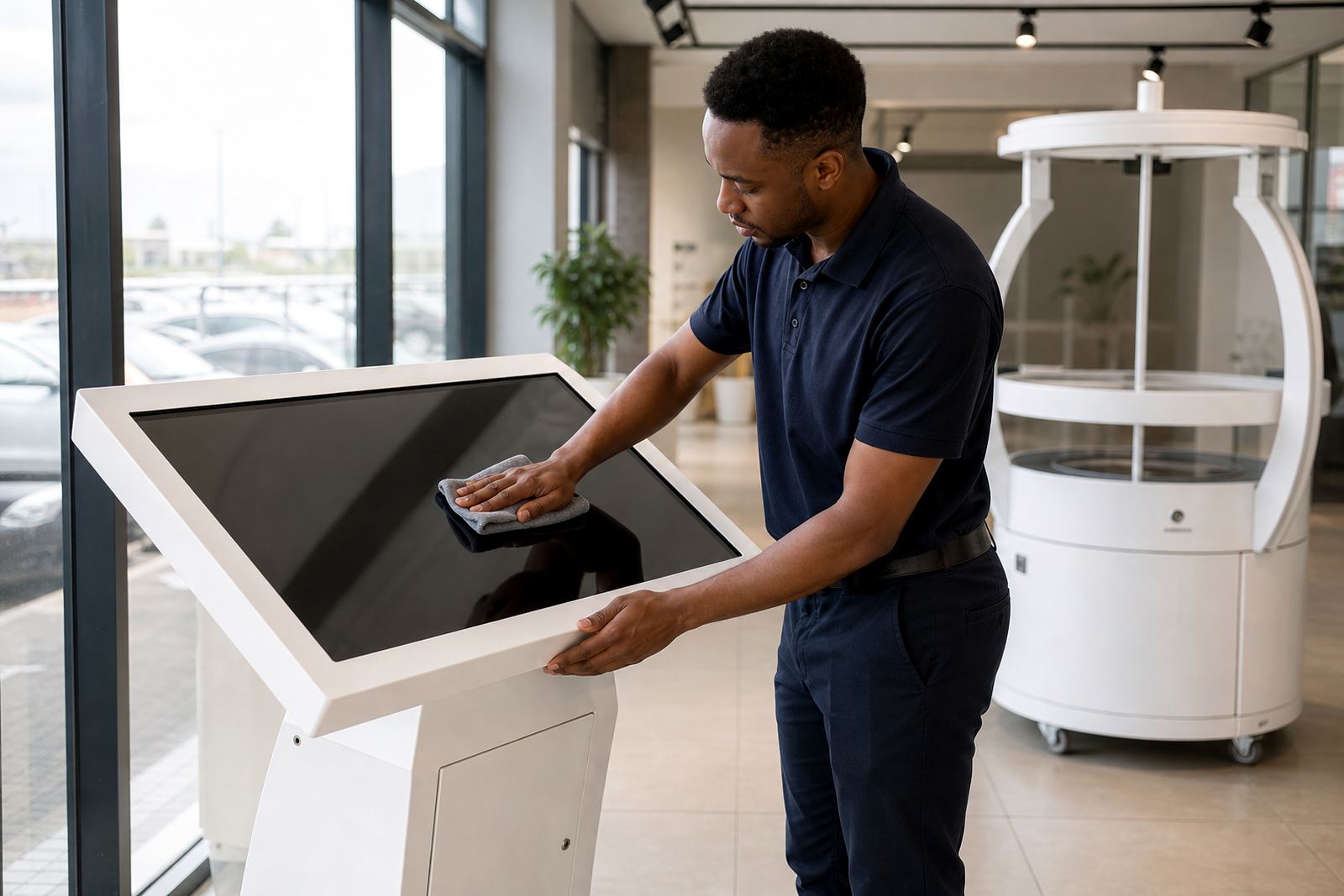
Do not use harsh household cleaners, rough cloths or any product that leaves a sticky film. A soft microfibre cloth and a screen-safe cleaner are usually enough for daily wiping. Spray the cleaner onto the cloth, not directly onto the screen, then wipe gently in straight passes. This keeps liquid out of the bezel and protects the touch sensors.
If the kiosk sits near an entrance, in a food court or close to a mall passage where dust builds up quickly, clean it more often. Midrand showrooms and retail sites with air conditioning often collect fine dust around vents too, so the frame and air inlets should not be ignored. A screen can look spotless and still be affected by grime around the edges.
- Switch the unit off before deep cleaning where possible.
- Use lint-free cloths only.
- Avoid excess water, bleach and ammonia based cleaners.
- Check that the screen is dry before powering back on.
Check for responsiveness before customers notice a fault
A screen that is slow to react or missing touches can usually be caught early during opening checks. Ask staff to test all corners of the display, swipe through menus and confirm that buttons respond cleanly. If the touch response is inconsistent in one area, that may point to calibration issues, software settings or a worn sensor layer.
It also helps to watch how the kiosk behaves after load-shedding or a power dip. In many South African stores, a unit may restart without trouble but still need software confirmation, network reconnection or a quick calibration reset. Those first few minutes after power returns are when minor issues show up.
- Test tap accuracy in all four corners.
- Check if the screen lags after a restart.
- Confirm the kiosk reconnects to the network.
- Look for ghost touches or repeated inputs.
Keep software, content and connections in order
Touchscreens are not only hardware. They depend on software, content files and a stable connection to work properly. If product images are slow to load or a menu freezes, the problem may be linked to a full storage drive, an outdated configuration or a network issue rather than the screen itself. That is why preventative servicing matters.
Retail teams should have a simple process for checking that content is up to date, files are opening correctly and any scheduled promotions are live. When a kiosk is used for store information, promotions or product comparison, stale content can make the unit less useful even if the hardware is working fine.
- Review content updates before major promotions.
- Back up important files and media regularly.
- Confirm network settings after router changes.
- Keep a record of software updates and service visits.
Protect the kiosk from physical wear and daily handling
Retail kiosks take a lot of knocks, especially in stores with trolleys, compact aisles or heavy weekend traffic. If a unit is mounted too low, customers may bump it. If cables are exposed, they can loosen over time. Even a neat-looking stand can have hidden wear at the base or behind the screen where staff do not look every day.
A short visual inspection once a week can save a lot of trouble. Check screws, brackets, locks and cable routing. Make sure the unit sits level and that ventilation is not blocked by display fixtures or stock boxes. In humid coastal branches, look out for corrosion around connectors and fittings, because once moisture gets in the damage can spread quietly.
- Tighten fixings on a scheduled basis.
- Keep vents clear for airflow.
- Check for scuffs around edges and base plates.
- Replace worn cables before they fail.
A practical maintenance routine for South African retail teams
The easiest way to keep touchscreens in good condition is to build maintenance into normal store routines. A quick wipe in the morning, a response test at opening and a weekly inspection are enough for many sites. For stores in Gauteng, the Western Cape and KwaZulu-Natal, conditions vary enough that one fixed routine is not always enough. Dust, humidity and power interruptions all play a part.
A useful example is a Midrand retailer running a touchscreen kiosk near the till area. The screen was cleaned daily, but the team skipped the edge checks. Over time, dust settled inside the frame and one side of the display started missing touches. A simple service visit, recalibration and cable check fixed the issue before it caused a full trading interruption. Small details matter, and they are easier to handle when caught early.
For most stores, the best approach is to pair daily cleaning with scheduled servicing. That way the kiosk stays responsive, looks sharp and keeps doing its job on the shop floor without constant interruption.
- Daily: wipe the screen and check for visible marks.
- Weekly: test touch response and inspect the frame.
- Monthly: review software, cables and network stability.
- As needed: arrange fault repairs or parts replacement.