
Start With the Site Power Check
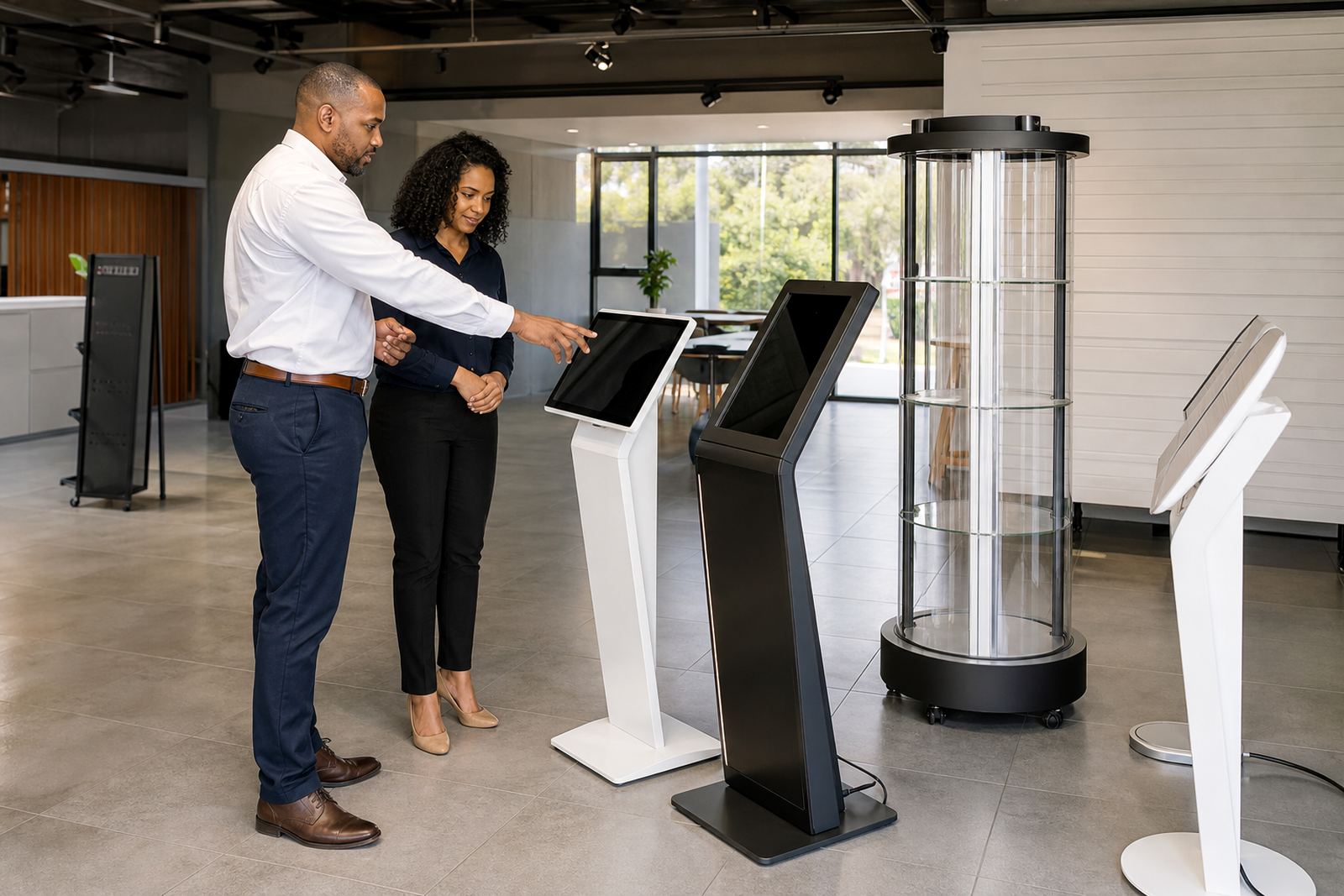
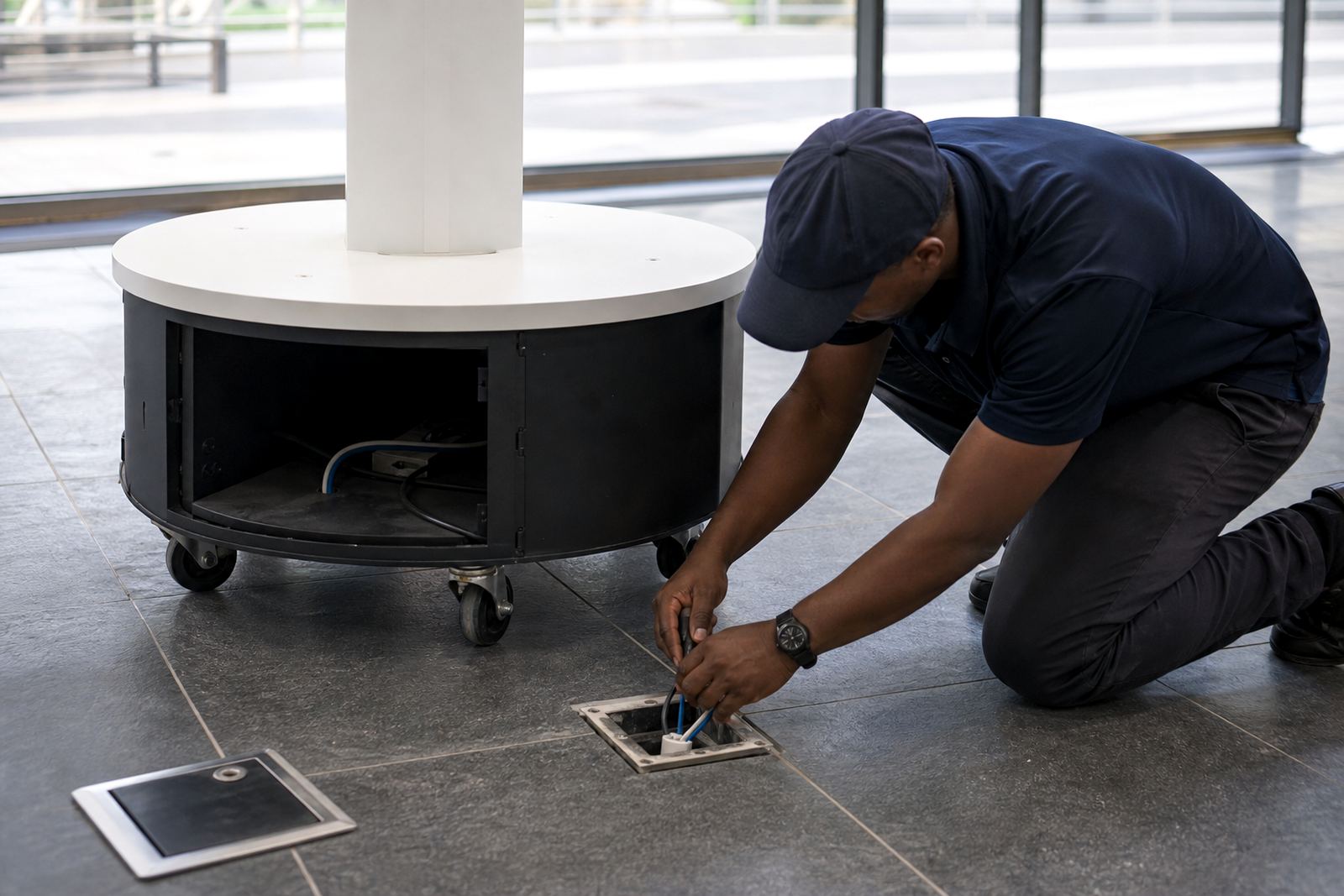
Before any touchscreen kiosk or 360 degree display stand is installed, the site needs a basic power assessment. Check where the nearest sockets are, which circuit they sit on, and whether the supply can handle the extra load without tripping when the store is busy. In shopping centres and malls, the rules may also require approval for the route of the cable, so it helps to confirm this early.
A proper site check also looks at the condition of the plug points, earthing and any existing surge protection. In coastal areas like Durban and Cape Town, moisture and salt in the air can affect connectors and exposed metal so it is worth using protected fittings and keeping equipment off the floor where possible.
Choose the Right Power Setup for the Unit
Most retail kiosks need a stable mains supply, and some sites benefit from added protection such as a surge protector or UPS. If the store has regular load-shedding, the kiosk should be planned around how long it must stay live and what functions must continue during an outage. A display that only shows product information may need less backup than a kiosk that accepts customer input or runs live content.
- Confirm the supply voltage and socket type before installation.
- Ask whether the kiosk needs a dedicated circuit or can share an existing one.
- Include surge protection for areas with unstable power.
- Allow for battery backup if the kiosk must stay on during load-shedding.
- Keep the power switch easy to reach for staff, but not accessible to shoppers.
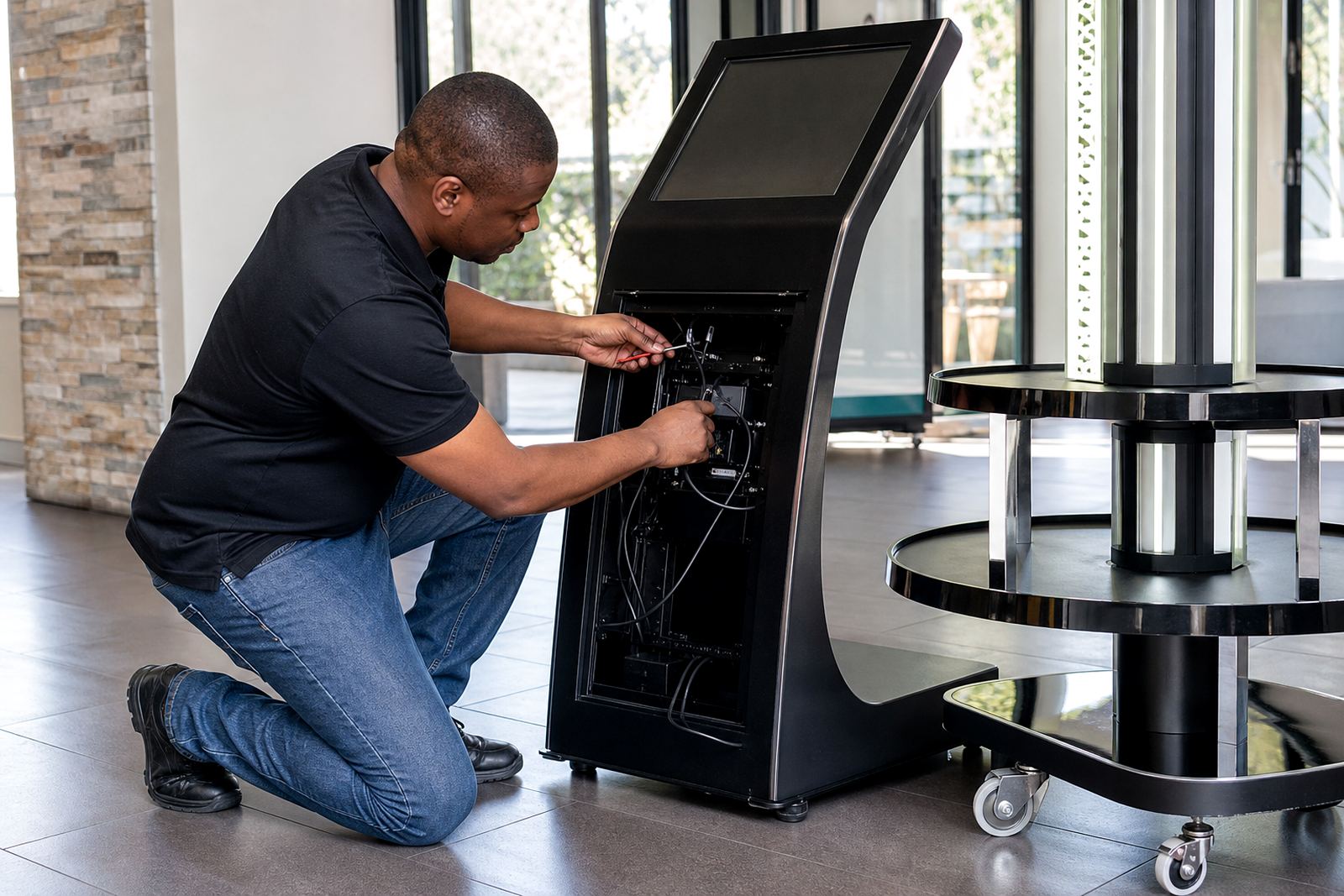
If the kiosk is being fitted into a custom plinth or fixed display, leave enough internal space for cable bends and access to the power lead. Tight cable runs make servicing harder later and can cause wear over time.
Plan Cabling So It Stays Safe and Neat
Good cabling is not just about appearance, it also affects safety and uptime. Cables should be routed away from foot traffic, trolleys and cleaning equipment. In a busy store in Johannesburg or Pretoria, a loose lead near an aisle can become a trip risk within minutes. Use cable covers where needed and keep all connections secured inside the unit or behind a locked panel.
For long-term reliability, label every cable clearly and keep data cables separate from power where possible. This reduces interference and makes fault-finding faster when a unit stops responding. It also helps with later upgrades if a new screen, reader or network device is added to the same kiosk.
- Use cable management clips or trunking to prevent strain on connectors.
- Keep spare cable length tidy, not bundled tightly or pinched.
- Separate mains and data lines where the layout allows.
- Check that all panels can still open for servicing after installation.
Connect the Kiosk to a Reliable Network
Many kiosks need a stable network connection for content updates, remote support or product data. Where a wired connection is available, it is usually the preferred option because it is more stable than Wi-Fi in crowded retail spaces. If the store relies on wireless connectivity, test the signal strength at the exact installation point, not just at the front counter.
Retail teams should also think about who controls the network access. If the kiosk is connected to the store system, the IT rules may require a separate VLAN, login details or firewall settings. A simple connection check before installation saves time later and avoids unnecessary site visits.
- Test signal strength and network speed at the kiosk position.
- Confirm whether the unit will use Wi-Fi, Ethernet, or both.
- Ask for the correct login details and network permissions in advance.
- Check if the store wants the kiosk on a separate guest or business network.
Prepare for Load-Shedding and Power Interruptions
In South Africa, power interruptions are part of day-to-day planning, not an afterthought. If a kiosk is expected to keep running during load-shedding, the retailer should agree in advance what level of uptime is needed. Some sites only need the screen to restart safely after power returns, while others need continuous operation throughout the outage.
It is also useful to decide what should happen after a power cut. Should the kiosk restart automatically, reload content, or wait for staff to log in? These details matter because frequent interruptions can corrupt files, interrupt training sessions, or leave the screen on the wrong page when customers arrive. A good plan includes a safe shutdown process and a restart test after installation.
Use a Simple Installation Checklist
A checklist keeps everyone on the same page before the installation team arrives. It reduces delays and makes sure the right parts, tools and access are available on the day. For multi-site rollouts across Midrand, Sandton, Cape Town or Bloemfontein, this is especially useful because each branch may have a different ceiling height, power point location or security rule.
- Power source confirmed and tested.
- Socket location checked against the final kiosk position.
- Network access arranged and tested.
- Surge protection or backup power included where needed.
- Cable route approved and protected.
- Staff trained on start-up, shutdown and basic checks.
- Service access left open for future maintenance.
After commissioning, the retailer should keep a small record of the setup, including cable layout, device settings and any special notes from the installer. That makes future repairs or relocation much easier and avoids guesswork if a store manager changes.
Know When to Call for Service Support
Even a well-installed kiosk may need attention later, especially in high-traffic stores where equipment runs for long hours. Warning signs include intermittent rebooting, screen flicker, slow response, overheating, or a connection that drops only at certain times of day. These issues often point to power quality, loose cabling or network instability rather than a screen fault alone.
For retailers with multiple branches, planned servicing is often the best way to avoid downtime. Preventative checks can pick up worn connectors, dust build-up, and failing backup batteries before they affect trading. It is usually cheaper to fix a small issue early than to wait until the kiosk goes offline during a busy weekend.