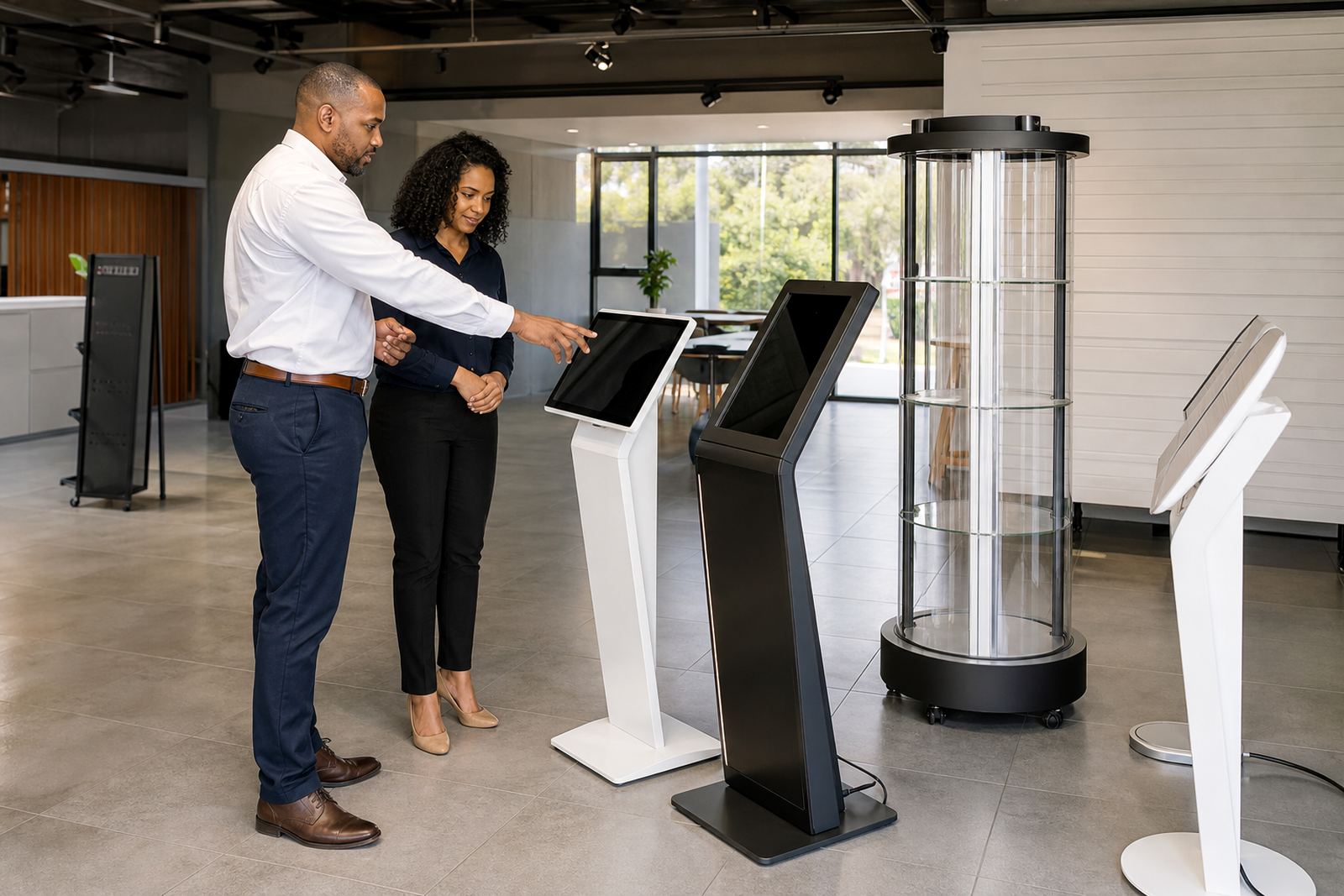

Start With A Daily Clean And Visual Check
Begin each trading day with a quick walk around the unit. Check the screen, frame, base and rotating section for dust, fingerprints, loose panels or anything blocking movement. In busy retail areas like Johannesburg, Pretoria and Cape Town, fine dust builds up faster than most people expect, especially near entrances and loading bays.
Use a soft microfibre cloth and a non abrasive cleaner suitable for screens. Do not spray liquid directly onto the display. Wipe around buttons, bezels, vents and touch points as well. If the unit is placed near a doorway or window, check for glare and direct sunlight that may affect visibility or heat build up.
Keep Touchscreens Responsive And Clear
A touchscreen that feels slow or unresponsive is often dirty, too warm, or running a software setting that needs attention. Clean the glass gently, then test the touch response in a few spots across the screen. If touch accuracy drifts near the edges, note the issue and arrange a calibration check before it affects shoppers.
- Wipe the screen with a dry microfibre cloth before opening hours
- Check for smudges, sticker residue and dust around the edges
- Confirm the display brightness suits the store lighting
- Restart the unit after a power interruption if it does not recover properly
- Report any flickering, ghost touches or delayed response straight away
For sites with frequent load-shedding, make sure the kiosk shuts down cleanly and restarts in the correct order. Sudden power cuts can cause software errors or corrupt stored content if the system is not configured properly.
Protect Rotating Displays From Wear And Strain
The 360 degree display stand should rotate smoothly without scraping, wobbling or jerking. Check the turntable, drive points and product holders daily, especially where products are handled often. If the load is uneven or heavier on one side, the motor and bearings can wear faster than expected. That is one of the quickest ways to shorten service life.
Keep the display balanced and do not exceed the recommended load. In coastal towns like Durban and Cape Town, humidity can also affect moving parts and surface finishes, so inspect for rust, moisture marks or sticky movement. A light clean and regular inspection goes a long way, and yes it saves money later on.
- Remove loose packaging, dust and product debris from the base
- Check that all items are secured before switching the unit on
- Listen for grinding, clicking or unusual motor noise
- Confirm the stand is level on the floor
- Stop use immediately if the rotation becomes uneven
Manage Power, Cabling And Network Points Properly
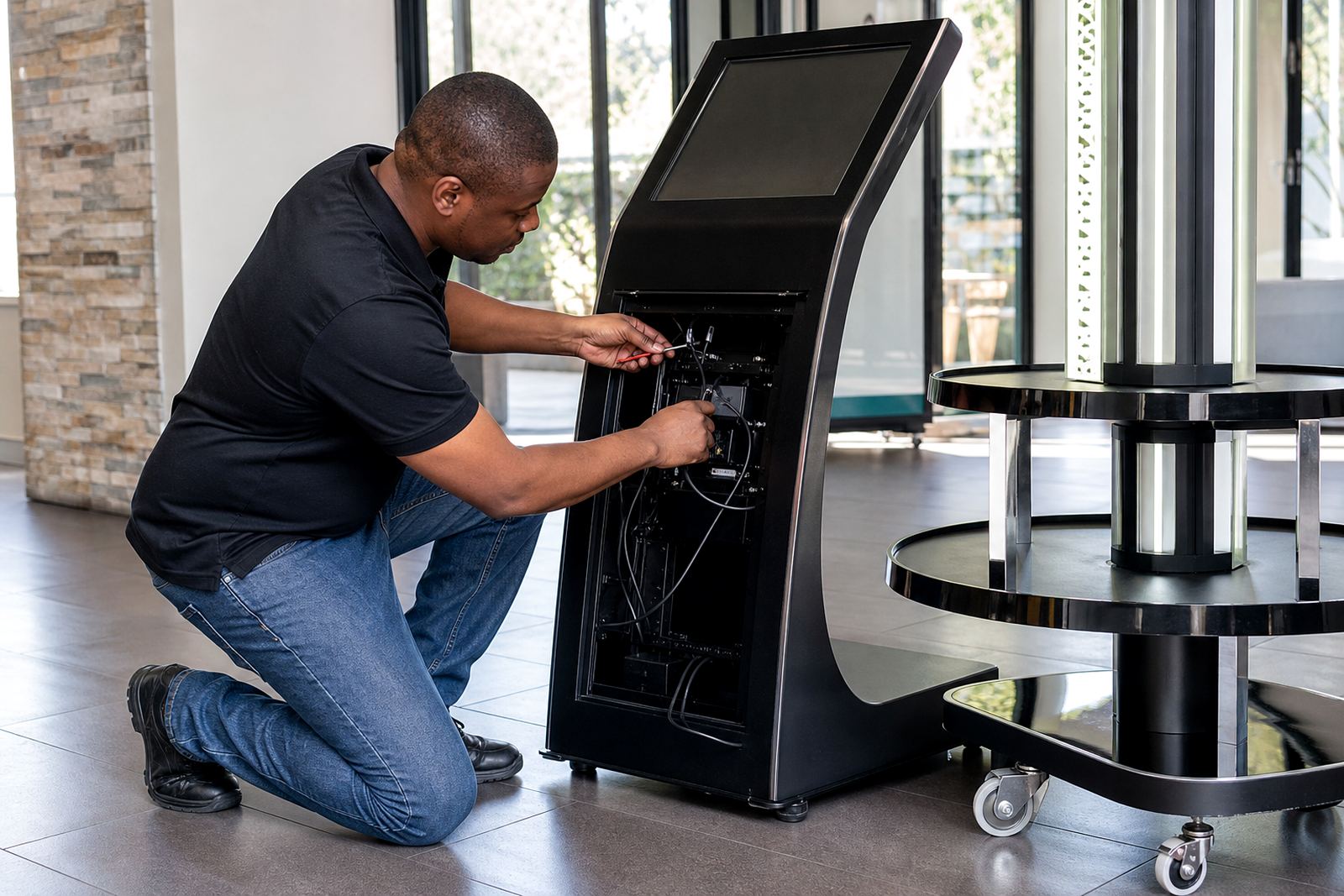
Most faults start with power, loose cables or poor network setup. Check all power leads, adaptors and connectors for heat damage, wear or accidental pulling. Cables should be routed neatly and protected where shoppers or cleaning staff may brush against them. In stores with tiled floors and regular trolley movement, a loose cable can become a repeat problem.
If the kiosk is connected to a network for content loading or remote support, make sure the router, switch or data point is secure and ventilated. Do not hide equipment in a closed box with no airflow. Heat builds up quickly and can cause faults that look bigger than they are.
Use A Simple Weekly And Monthly Maintenance Routine
Set a routine that staff can follow without guesswork. Weekly checks should cover cleaning, touch testing, rotation testing and a quick review of software alerts. Monthly checks should include deeper inspection of vents, mounts, cable strain points and any stored content that needs updating. Keep a written log so everyone can see what was done and when.
A basic schedule works well in smaller stores, while larger retail groups often assign the task to the floor manager or maintenance contact. If several branches use the same display setup, keep the routine consistent from Midrand to Bloemfontein so the same faults do not keep repeating.
- Weekly: clean screens and frames, test touch response, check rotation
- Weekly: confirm content is loading correctly and audio levels are acceptable
- Monthly: inspect mounting hardware, vents and cable routes
- Monthly: review software settings and update content if needed
- Quarterly: arrange preventative servicing and a full operational check
Know When To Stop And Call For Repair
Some issues can be handled in store, but not all of them should be left to chance. If the screen goes blank, the stand stops rotating, the unit smells hot or the system keeps restarting, stop using it and arrange fault support. Forcing the unit to keep running can turn a small repair into a full replacement, and nobody wants that.
Use this quick decision guide:
- If it is dirty or dusty, clean and test again
- If it is a simple power issue, check the supply and restart safely
- If it makes a grinding sound or the screen fails repeatedly, log the fault
- If the unit has physical damage, remove it from service immediately
- If the issue affects customer safety, do not leave it on the floor
For retailers that run multiple sites, support retainers and preventative servicing can help keep downtime under control. A small monthly check is usually cheaper than a rushed repair after trade has already been interrupted.