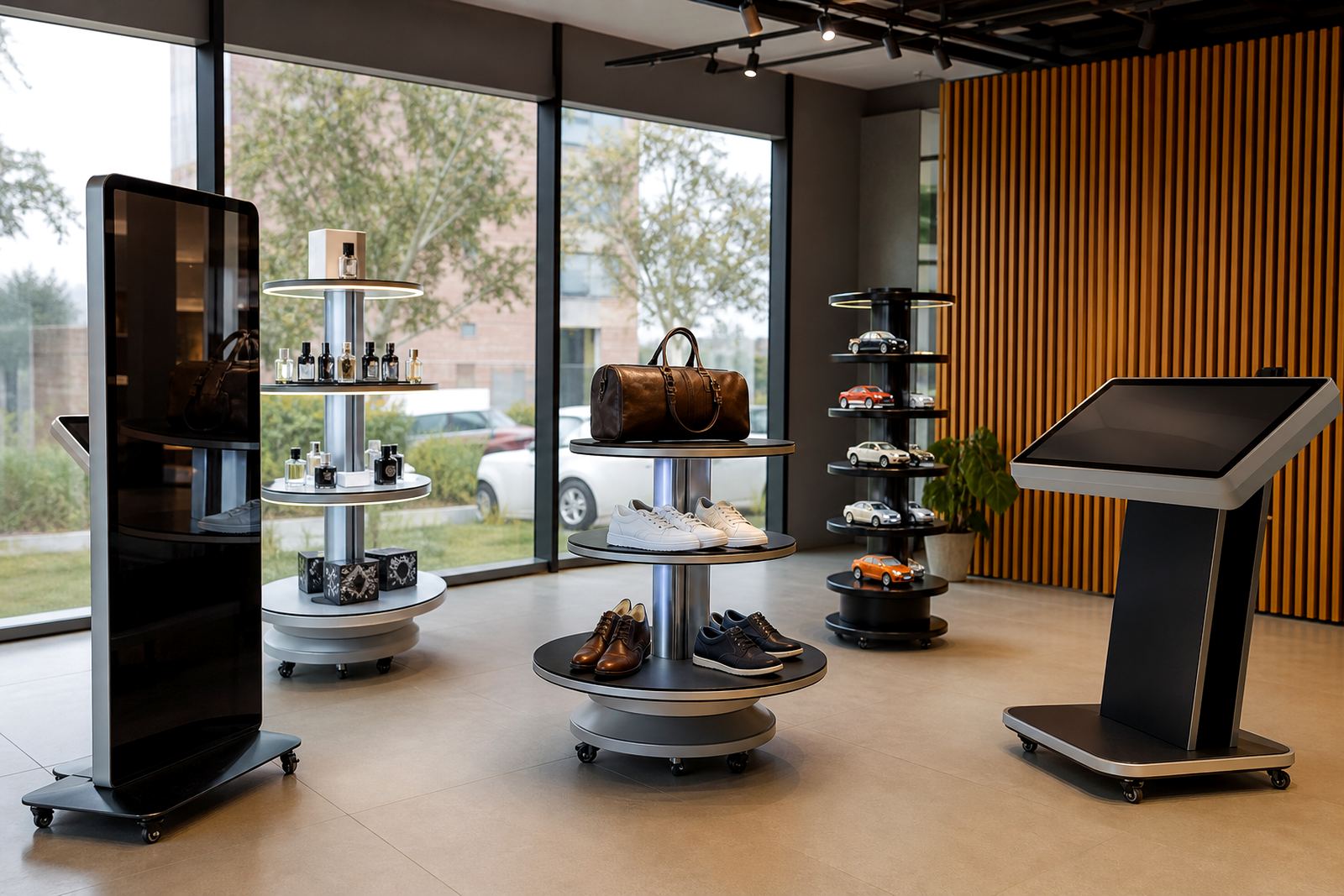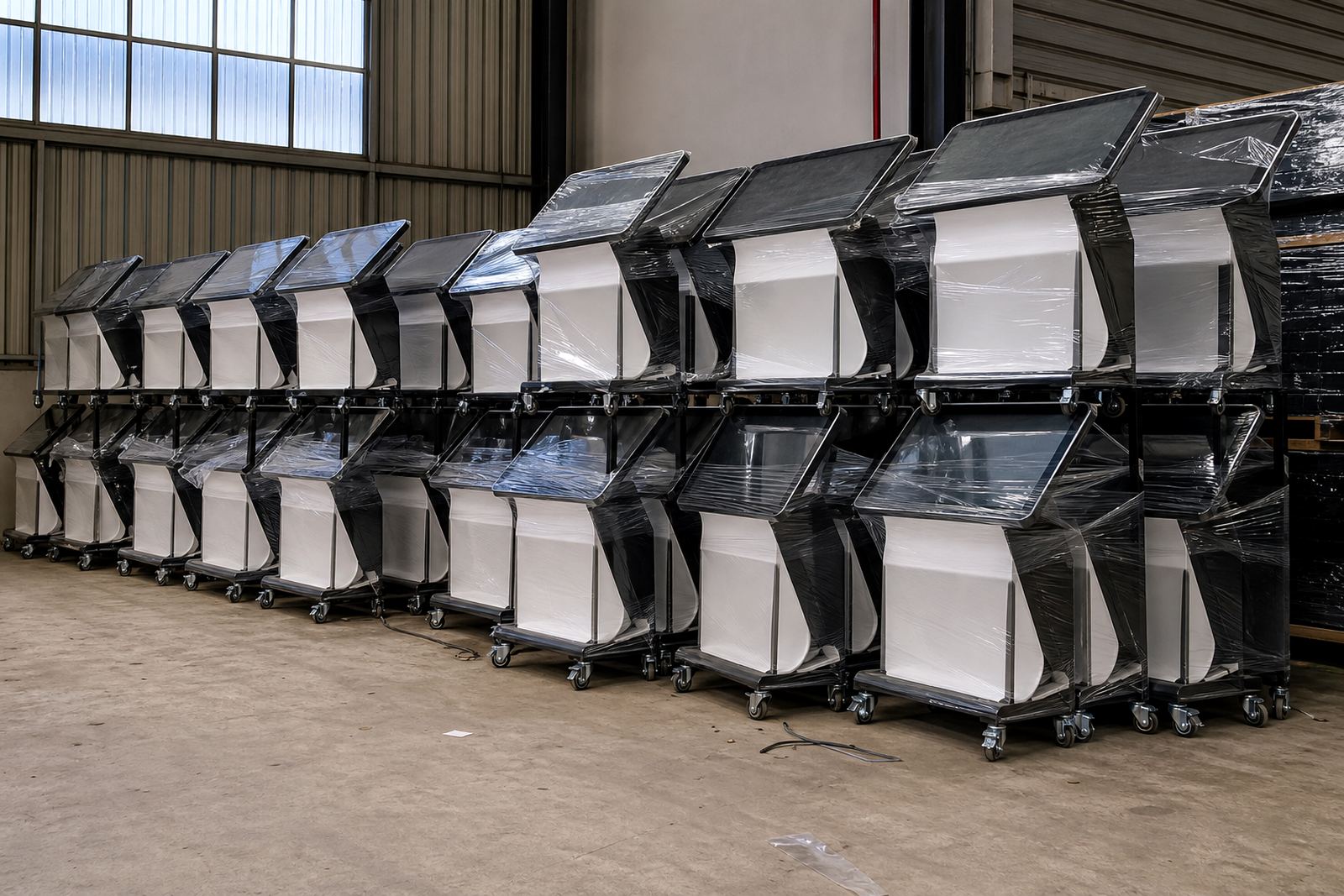


Start With The Shopper Journey
Before you load anything, map the path a shopper will take on the screen. In a busy store in Midrand, Sandton or Cape Town, people usually want a quick answer first, then a deeper look if the product catches their interest. Keep the opening screen clear, with one main action and no clutter.
Think about the questions customers ask at the shelf. What does it do, what sizes are available, what does it cost, and where do I find it in store. If your content answers those questions in a few taps, staff spend less time explaining and more time serving.
- Choose one primary action per screen.
- Keep headings short and readable from a standing position.
- Use plain language instead of marketing jargon.
- Make sure the first screen works in under 5 seconds on your network.
Prepare Images That Hold Up In Store
Retail screens need images that stay sharp and clear under bright lighting. Use high-resolution product shots, simple backgrounds and consistent framing across the range. For touchscreen kiosks, a clean image with one focal point is usually better than a busy collage.
Where a product has small details, include close-up views as well. In Gauteng stores with strong daylight near entrances, low-quality images can look dull or grainy. For coastal branches in Durban or Cape Town, make sure files are properly optimised so they load quickly even when network conditions change.
- Use landscape images unless the layout needs portrait.
- Keep file sizes practical for fast loading.
- Remove watermarks, borders and unnecessary text.
- Check colour accuracy so packaging and finishes are shown correctly.
Build Menus That Are Quick To Read
Menus should help shoppers find the right category without hunting through too many layers. Group products the way customers think about them, not the way the back office stores them. If the range is wide, keep the first menu to 5 to 7 options and use simple labels.
Test the menu with someone who did not help create it. If they can find a product in a few taps, the structure is probably right. Avoid long category names and make sure button spacing is comfortable for all ages, especially in high traffic stores where people may be tapping quickly.
- Use short category names like Home, Audio, Kitchen or Beauty.
- Place the most searched items near the top.
- Keep back buttons visible on every screen.
- Use the same naming style across all branches.
Load Product Details That Support The Sale
Each product page should give enough information for a shopper to decide without needing help. Include the basics first, then add details that matter for comparison. For a retail environment, that usually means size, finish, compatibility, warranty terms, and any special care notes.
If you have multiple branches from Johannesburg to Bloemfontein, make sure the same product is described the same way everywhere. That avoids confusion and keeps the customer experience steady. Where pricing changes often, keep price fields easy to update and assign one person to check them before new stock arrives.
- Product name and model code.
- Key features in 3 to 5 bullet points.
- Dimensions, weight, colour and material.
- Price, stock note and any important exclusions.
Plan Updates For Promotions And Seasonal Trading
Retail content works best when it is kept current. A summer promotion, Easter special or year end clearance should be prepared before the changeover day, not on the morning it goes live. That way your screens are ready even if there is load-shedding, store traffic or a delivery delay.
Build a simple content calendar with the dates, responsible person and approval status. For chains in Pretoria, Centurion or Durban, it also helps to keep a local variation list in case one branch carries different stock. Short campaigns can be loaded in advance and switched on at the right time.
- Set a monthly review for prices and featured products.
- Prepare backup images in case a campaign changes late.
- Keep an offline copy of key files and menus.
- Remove expired promotions before they confuse shoppers.
Check Technical Files Before Installation
Good content still needs the right format to run properly on the kiosk or display stand. Check file names, image sizes, video length and any interactive elements before delivery. Small issues like the wrong format or broken link can slow down installation and lead to avoidable callouts.
It also helps to match the content with the hardware location. A kiosk near an entrance may need stronger contrast, while a stand in a quieter aisle can carry more detail. If the unit is going into a mall or a store with strict municipal or landlord rules, confirm power points, mounting clearances and cable routes in advance.
- Use consistent file names that make sense to your team.
- Test every button, link and menu path.
- Confirm language choices, spelling and prices.
- Make sure all media opens cleanly on the final hardware.
Hand Over Content In A Way Staff Can Manage
Once the content is ready, the store team should know how to keep it current. A short handover sheet is often enough if it covers who updates what, how often to review content and what to do if something stops working. This is especially useful where several branches share one content set but local managers handle day to day changes.
Keep the process practical. One person can check pricing, another can approve promotions and a third can manage signage changes. When staff know the routine, the system stays useful after installation and the customer experience stays tidy not messy.
- Write down the update schedule.
- Assign one owner for approvals.
- Keep a simple list of approved image and text sources.
- Train staff on what to do during faults or power interruptions.