
Start With Who Will Use The Kiosk
Accessibility is not only about compliance, it is about making sure a shopper can approach, read, touch and complete an interaction without strain. In a retail setting that means thinking about wheelchair users, shorter shoppers, taller shoppers, older customers, people carrying bags, and parents with children. A kiosk that works well in a quiet showroom may not work the same way on a busy sales floor in Sandton or a high footfall store in Durban.
Begin with the simplest questions: can the screen be reached without over stretching, can the text be read from a standing and seated position, and is the instruction flow easy to follow on the first try? If the answer is no, the design needs adjusting before the unit is installed.
- Check the main touch area from seated and standing positions.
- Allow enough floor space for a wheelchair or trolley to turn.
- Keep key actions in the same place on every screen.
- Make sure the kiosk can be used without needing a staff member to step in.
Set The Right Viewing Height And Reach
Height is one of the biggest factors in accessibility. A screen placed too high forces people to lift their arms and tilt their heads, while one that is too low can be uncomfortable for standing shoppers. The best placement depends on the product, the stand, and the store layout, but the goal is always the same: the main controls should sit in a natural line of sight and within easy reach.
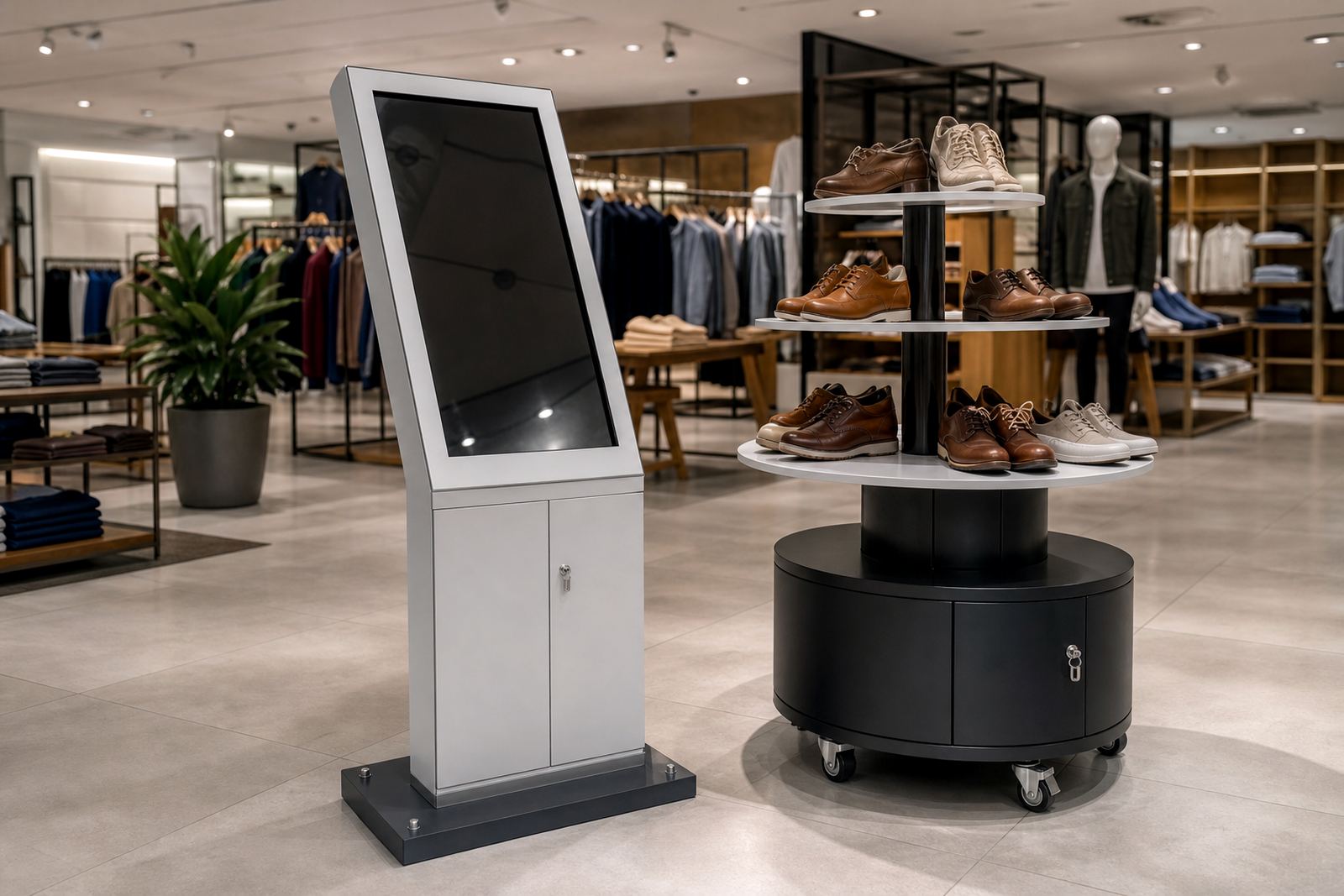
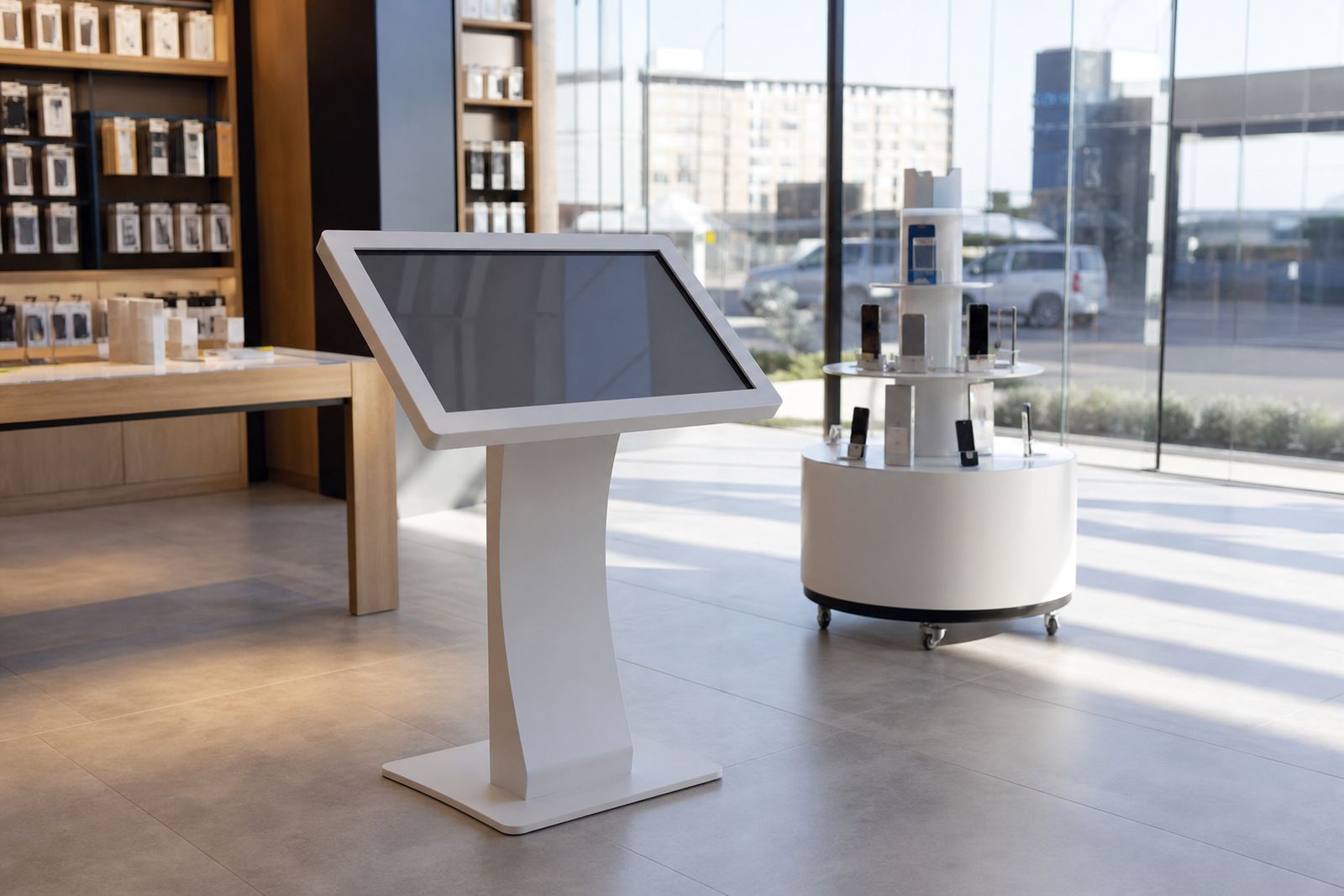
For most retail counters and floor stands, it helps to test the unit with people of different heights before final placement. Leave enough clearance under the screen for a seated shopper to approach comfortably, and avoid placing buttons where a user must reach across the full width of the screen. If the kiosk includes a product display stand, make sure the product does not block the touch zone or cast glare onto the display.
- Keep primary touch points between waist and chest height where possible.
- Leave front access space for seated users and prams.
- Avoid top mounted signage that blocks the screen view.
- Test the unit at the exact installation spot before fixing it in place.
Design For Clear Reading And Simple Navigation
Many accessibility problems come from screen content rather than the hardware itself. Small text, crowded menus and weak contrast make it hard for shoppers to move through the kiosk confidently. In retail, the shortest path often works best. A shopper should be able to understand what the kiosk does within a few seconds and find the next step without guessing.
Use large text for headings, short labels for buttons and plain language in every instruction. Avoid long paragraphs on screen. If the kiosk is used to show product details, keep the key facts at the top, such as size, price band, colour options and whether stock is available in store. For promotions, use one message per screen rather than trying to show too much at once.
- Use high contrast between text and background.
- Keep button labels short and consistent.
- Use simple wording, not technical terms.
- Limit each screen to one main action.
- Check that glare from shop lighting does not wash out the content.
Make The Physical Surroundings Easier To Use
A well placed kiosk can still be difficult to use if the surrounding area is cluttered. In a store with narrow aisles, promotional bins, loose stock or busy queue lines, shoppers may not feel comfortable approaching the unit. Keep the surrounding space clear and make the access route obvious from the moment a customer walks past.
Flooring also matters. A unit on uneven tiles or thick matting can feel unstable and may need extra levelling. In coastal areas such as Cape Town and Durban, consider moisture, salt air and general wear on metal parts and cable points. In inland stores, dust and air conditioning can affect touch sensitivity over time, so regular cleaning is worth planning from the start.
- Keep the approach route free of boxes, stock trolleys and display clutter.
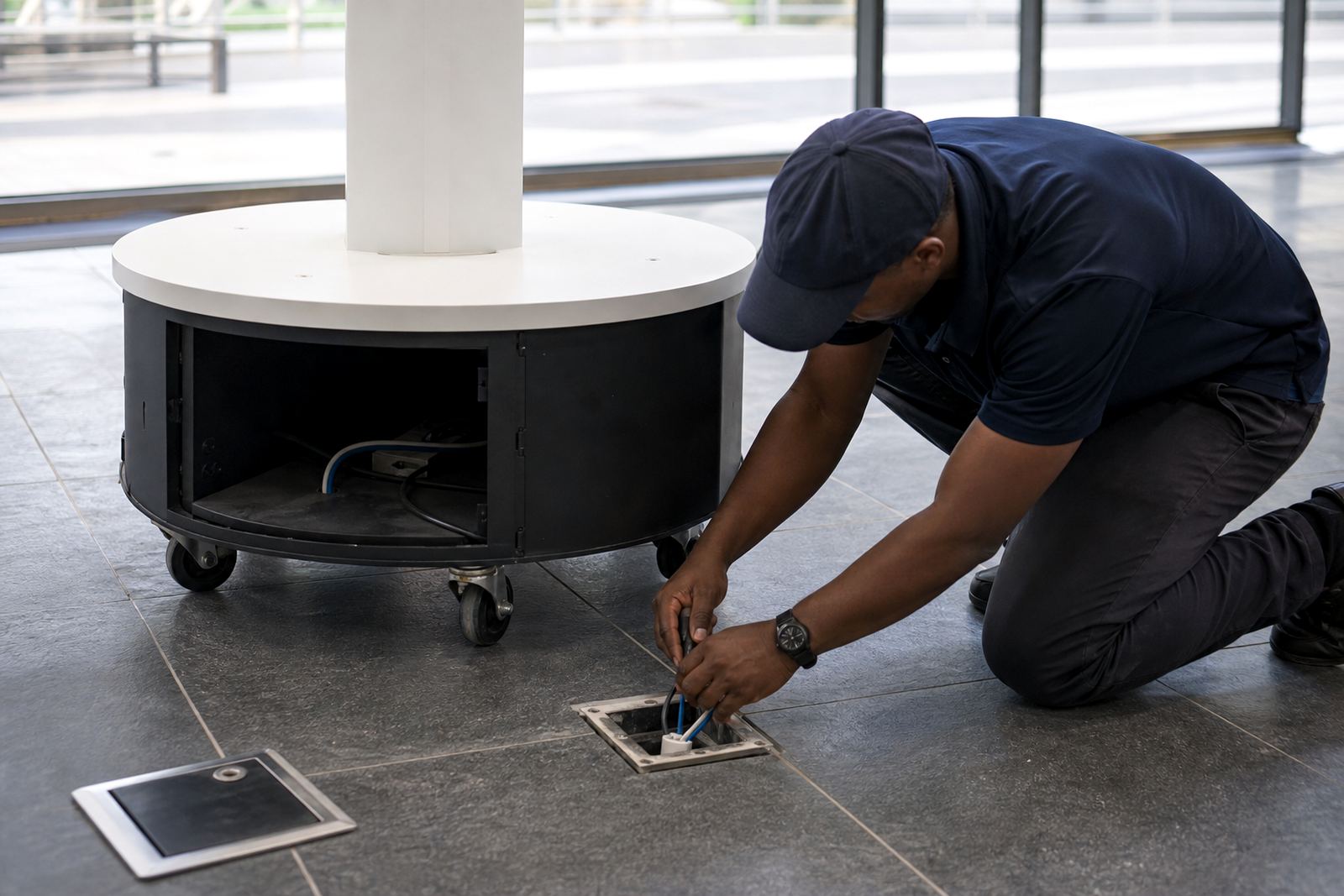
- Make sure cables are secured and out of the walking path.
- Use a stable base that does not wobble under pressure.
- Check that the unit stays usable during cleaning, trading and load shedding conditions.
Prepare Staff To Support Every Shopper
Accessibility is stronger when store teams know how to help without taking over. Staff should understand how the kiosk works, how to reset a stalled screen, and when to step in if a shopper asks for help. That includes showing a customer where to start, not touching the screen for them unless they request it, and keeping the interaction respectful and brief.
Training should also cover routine care. A kiosk that is easy to use can still fail if the screen is dirty, the software is out of date, or a connection has dropped. On a busy trading day in Johannesburg or Pretoria, a quick pre-opening check can prevent complaints later in the day. It helps to give teams a simple checklist they can follow every morning.
- Wipe the screen and check for fingerprints or dust.
- Confirm power, network and software status before trading.
- Know the basic restart steps and who to call for fault repairs.
- Keep a short script ready for helping shoppers without crowding them.
Use A Practical Checklist Before Sign-Off
Before any kiosk goes live, run a final accessibility check on site. This should be done in the real trading space, not only in a quiet prep area. Stand in front of the unit, approach it from the side, and test it from a seated position if possible. If the kiosk is part of a wider product display, make sure the display stand does not interfere with reach, viewing or movement.
A final checklist also helps identify small issues that can become daily frustrations. A slight angle adjustment, a better cable route, or a software menu change can make a big difference to the shopper experience. The aim is not perfection, it is practical use for more people across more stores.
- Can the screen be reached without strain?
- Is the text easy to read in daylight and store lighting?
- Is there enough room for a wheelchair user to approach?
- Are the controls clear, simple and consistent?
- Does the kiosk still work when the power or network is interrupted?
- Have staff been trained on support and basic troubleshooting?