
What software configuration covers on site
Software configuration is where the hardware starts doing useful work for the store. We set the interface behaviour, menu structure, content timing, language options and access controls so shoppers can move through the screen without confusion. The goal is simple: a kiosk that is easy to use, quick to load and consistent with your retail flow.
For South African retail environments, that means setting up systems that cope with daily power interruptions, store Wi Fi changes and high foot traffic. We also factor in glare from bright mall lighting, humidity at coastal stores and the type of product range being shown. If your kiosk is in Johannesburg or Pretoria, the setup may focus on fast movement and promotions. In Cape Town or Durban, we often add stronger protections for environment related wear and longer unattended hours.
- Touch sensitivity and response settings
- Home screen layout and navigation structure
- Content categories, product ranges and call to action buttons
- Language support and region specific wording
- User permissions for staff, supervisors and support teams
How we set up the interface for retail use
We begin by mapping the intended customer journey. That includes what the shopper sees first, how many taps are needed to reach product details and where staff should be able to step in if a customer needs help. A good setup keeps the process short and clear, with no clutter on screen.
Our configuration work also includes the technical side. We set display resolution, screen timeout, auto launch behaviour, file paths for media and offline fallback settings where needed. If the unit connects to a local network, we can configure Wi Fi, static IP settings and remote update access. For stores with more than one location, we can standardise settings so every branch behaves the same way, whether it is Midrand, Sandton or Bloemfontein.
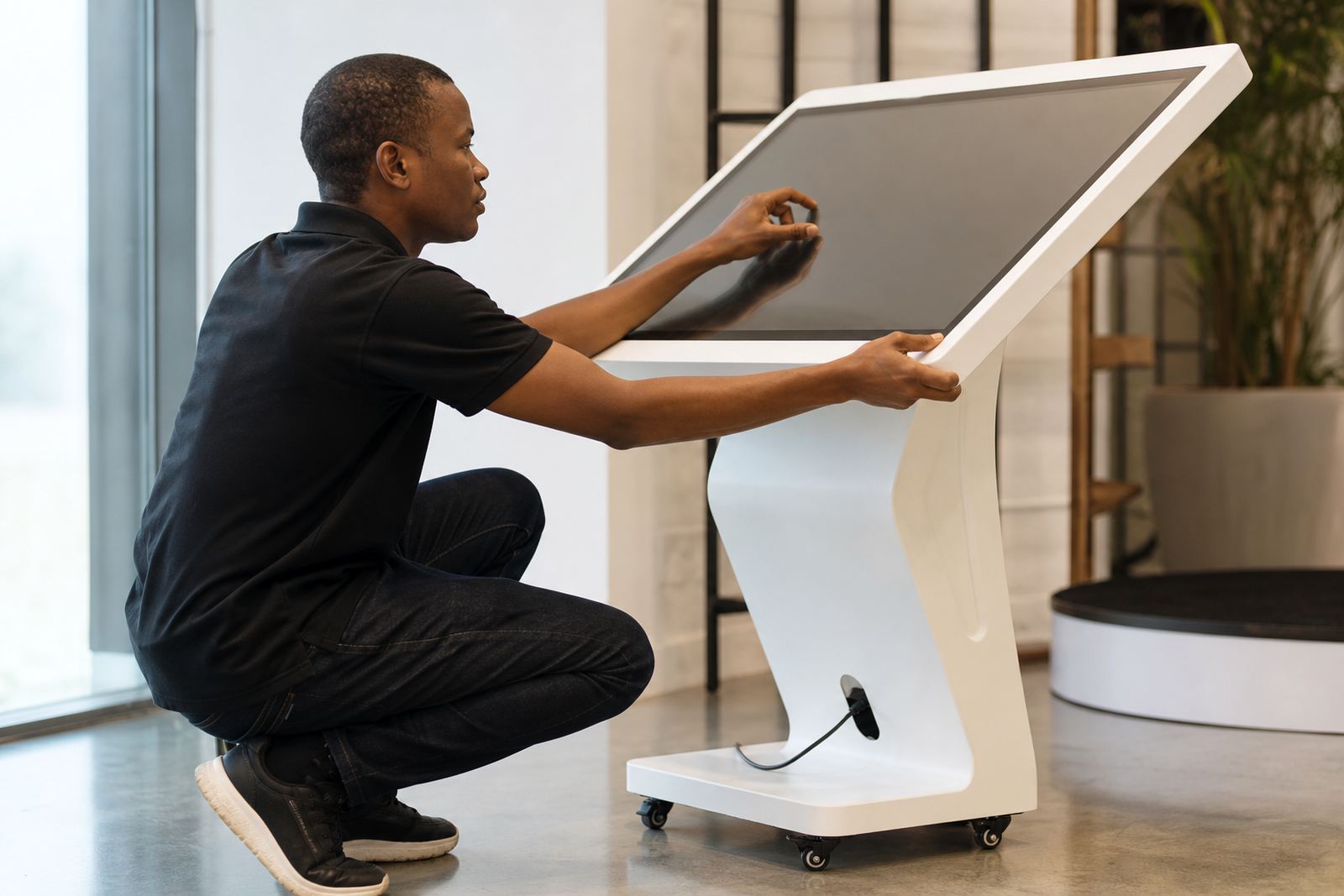
- Screen calibration and brightness tuning
- System startup and shutdown rules
- Idle mode, screen saver and power recovery settings
- Network and security configuration
- Remote support access where approved by the client
Our configuration process from brief to go live
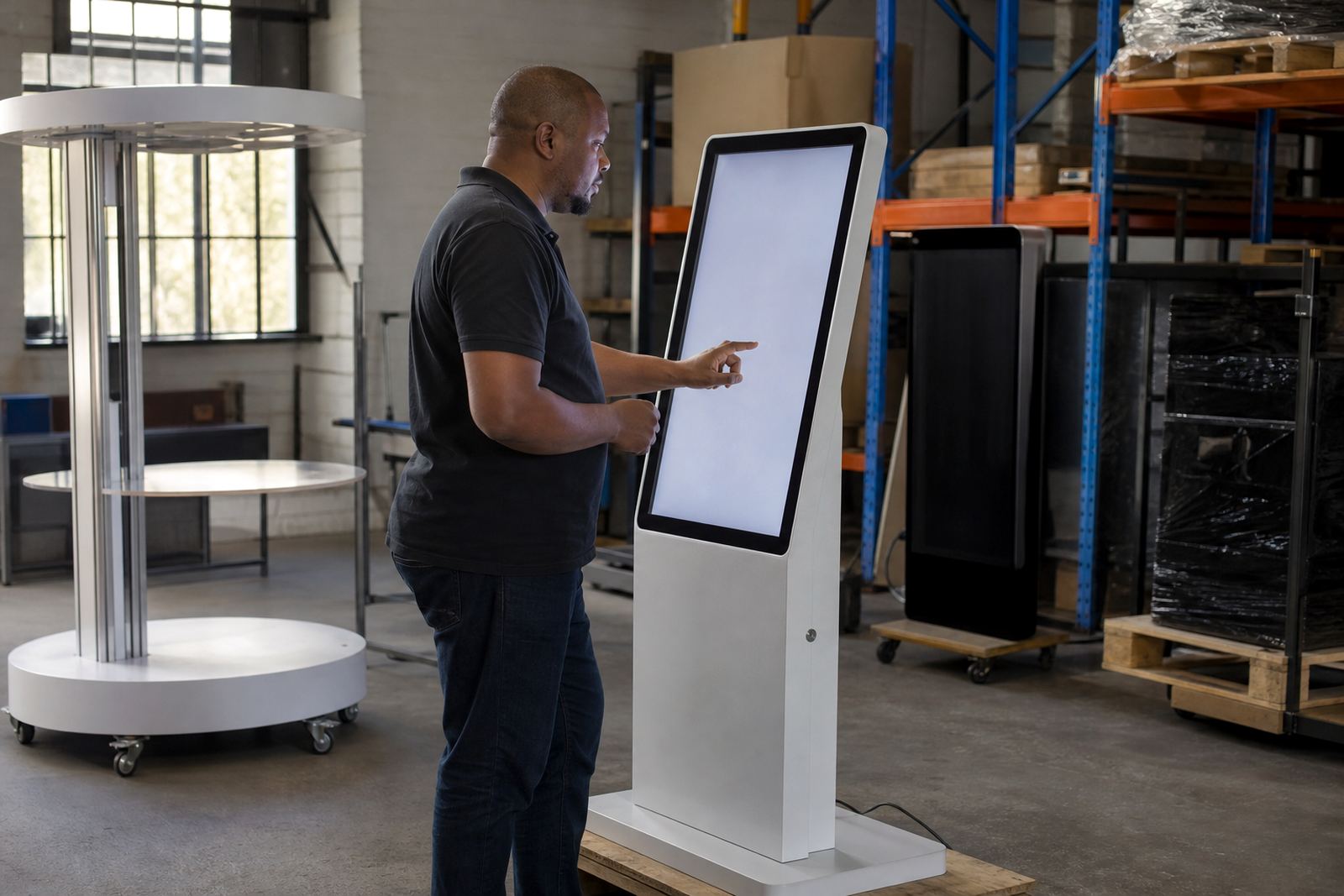
We keep the process practical. First, we review the store brief, product range and any brand or compliance rules that affect the interface. Then we prepare the software profile, test the navigation and load the approved content. Before handover, we check each function on site to make sure touch response, screen flow and linked hardware are all working properly.
Most projects follow four steps. First is the assessment, where we check store conditions and your required user flow. Second is setup, where we build the interface and apply the technical settings. Third is testing, where we simulate real use with staff and shoppers. Fourth is handover, where we train the team and confirm the support plan. This approach avoids rushed fixes later on.
- Brief review and site assessment
- Interface build and system setup
- Testing with real user paths and staff checks
- Handover, training and support setup
Turnaround times and pricing approach
Turnaround depends on the number of kiosks, the complexity of the interface and whether the content is already prepared. A single unit with standard settings can usually be completed faster than a multi branch rollout with custom menus, multilingual content and network integration. If your store has a tight launch date, we plan the work in stages so installation and configuration do not hold up trading.
Pricing is based on the level of configuration required rather than a one size fits all rate. Basic setup is quoted differently from a custom retail journey with branded screens, multiple user roles and remote management. We also separate configuration from content creation, hardware repairs and installation so you only pay for the work needed. For larger rollouts, we can structure the quote by branch or by unit, which helps with budgeting in Rand and makes procurement simpler.
- Simple single unit setup for standard retail use
- Advanced setup for branding, integrations and multiple user levels
- Branch based pricing for multi store rollouts
- Clear separation between software work and hardware work
Maintenance intervals that keep systems reliable
Once the kiosks are live, the software should be checked at regular intervals. Touch systems can drift over time if content changes, files become outdated or network settings shift after other store work. We recommend scheduled checks after installation, then at planned intervals based on store traffic and how often the content changes. For busy retail locations, monthly reviews are often the safest option.
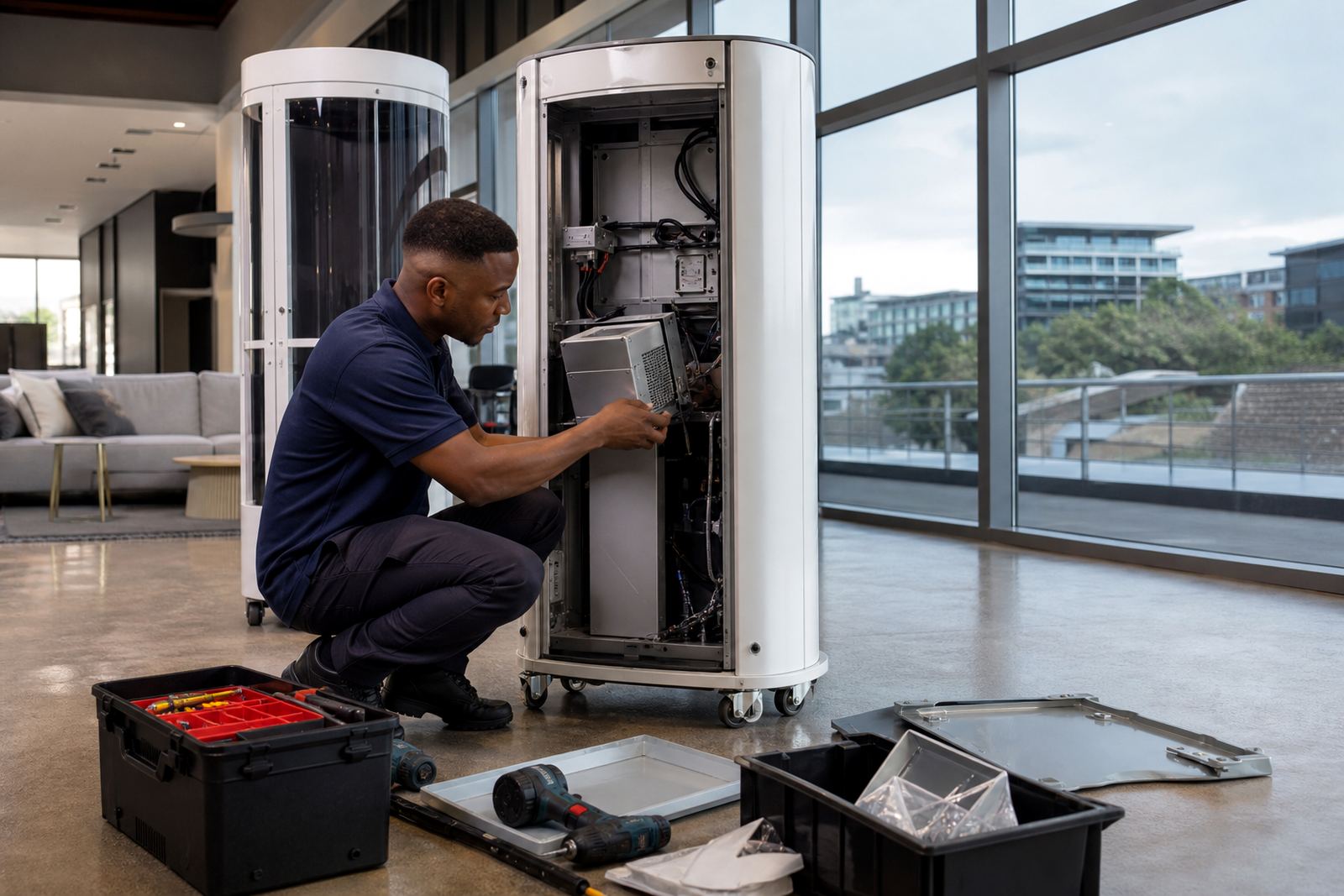
Maintenance usually includes software updates, content verification, touch response checks, display tuning and confirmation that any connected devices are still talking to the main unit. In coastal areas, where salt air can affect electronics and fittings, we also watch for signs of wear around ports and cable routes. If a store experiences load shedding, we look at recovery settings and power up order so the kiosk returns to service properly after an outage. A quick visit now can save a bigger fault repair later, and that keeps the floor team from having to explain delays to customers.
- Post installation check after go live
- Monthly or quarterly maintenance depending on usage
- Content and function review after promotions change
- Power recovery and startup checks after outages
What your store gets on handover
When configuration is complete, your team receives a system that is ready for retail use and easy to manage. Staff know how to start the unit, navigate the interface and handle the basic checks before trading begins. If you have multiple branches, we can align the settings so your customer experience stays consistent from Pretoria to Durban.
The handover also covers practical support notes. That includes which settings should stay locked, when to request an update and how to report a fault before it affects the customer queue. We keep the setup clean and straightforward, because a screen that takes too many taps will not help sales. The point is to make the technology useful, not complicated.
- Configured interface ready for daily use
- Staff guidance for routine operation
- Settings record for future support work
- Clear next steps for updates, repairs or expansion
Key facts
| Touch response | Calibrated for accurate finger input and fast menu selection |
|---|---|
| Display support | Set for common retail screen sizes from compact counters to larger floor units |
| Resolution handling | Configured for clear product visuals and readable text |
| Network options | Wi Fi, LAN and static IP setup where required |
| Power recovery | Auto restart and safe recovery settings for outage affected sites |
| Access control | Role based permissions for staff, supervisors and support teams |